User Steps:
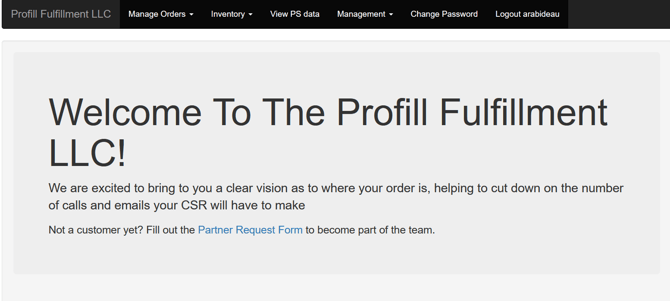
- Log into the Profill Portal
- Upon log-in, navigate to Manage Orders from menu
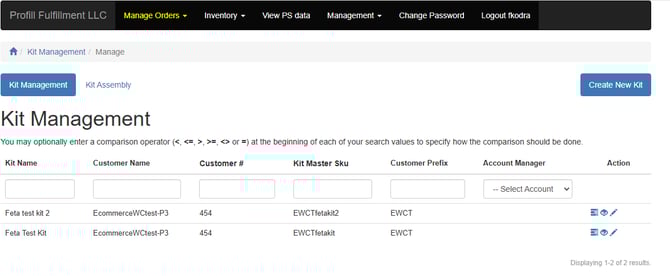
- From the drop-down menu on Manage Orders, select Kit Management
- Review list of kits, this is depended on your user access
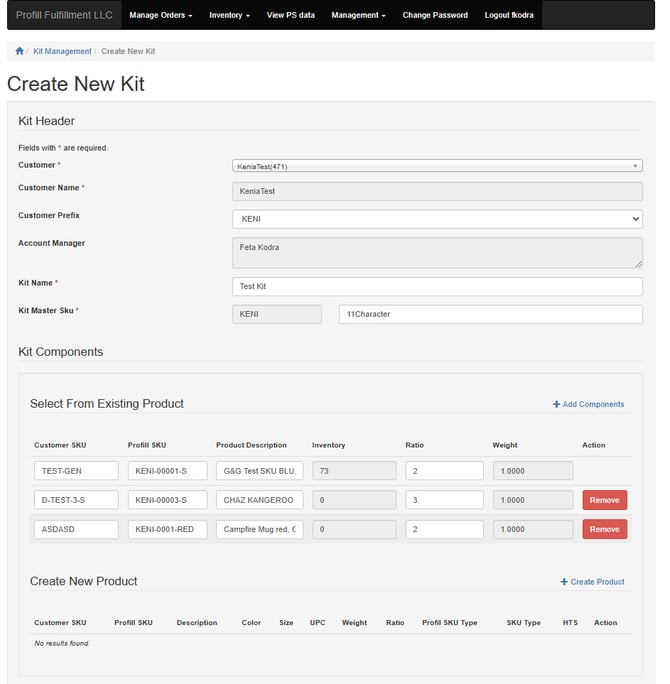
- Click the ‘Create New Kit’ button on the top right side of the page
- Select your customer
- Select the Prefix you want this Kit Master SKU to be associated with
- Provide a Kit Name
- Provide a Kit Master SKU
- Kit Master SKU starts with the prefix selected above.
- You have an additional 11 characters to create the SKU; a total of 15 characters
- Select the Add Components you want to make up the Kit
- Search for the component by either Customer SKU, Profill SKU, or Description of the component
- Provide the Ratio per component that makes 1 Kit
- You may add or remove components
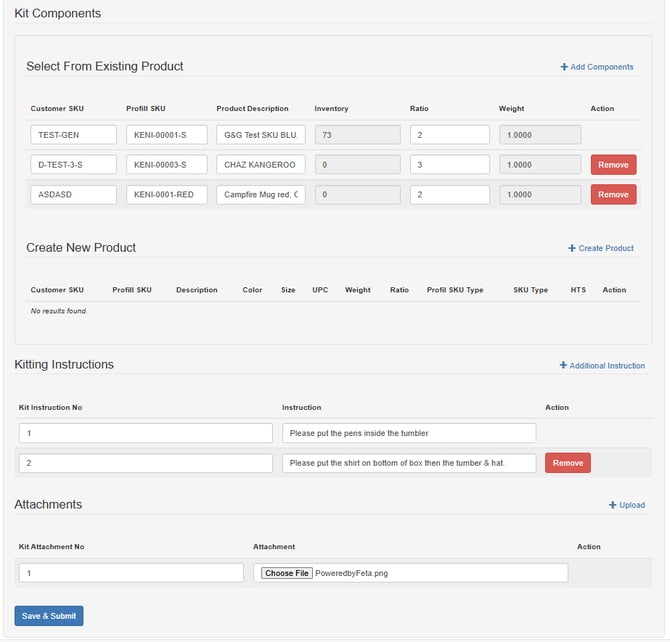
- Provide kitting Instructions for our Kitting Department for your kit
- You can add multiple instructions by clicking "Additional Instructions"
- Need at least one instruction per kit.
- Provide attachments that may help with the kitting instructions
- You can add multiple instructions by clicking "Upload"
- You need at least one attachment per kit
- Click Save & Submit to save your kit or any changes
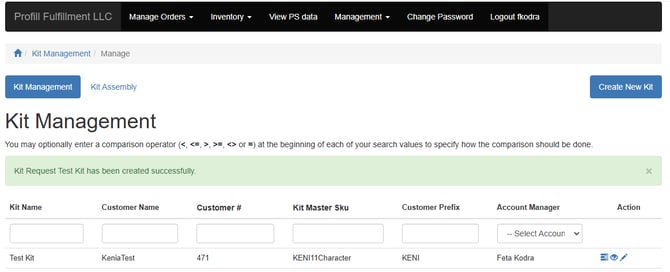
- You will be redirected to the Kit Management page with a success message on your new kit