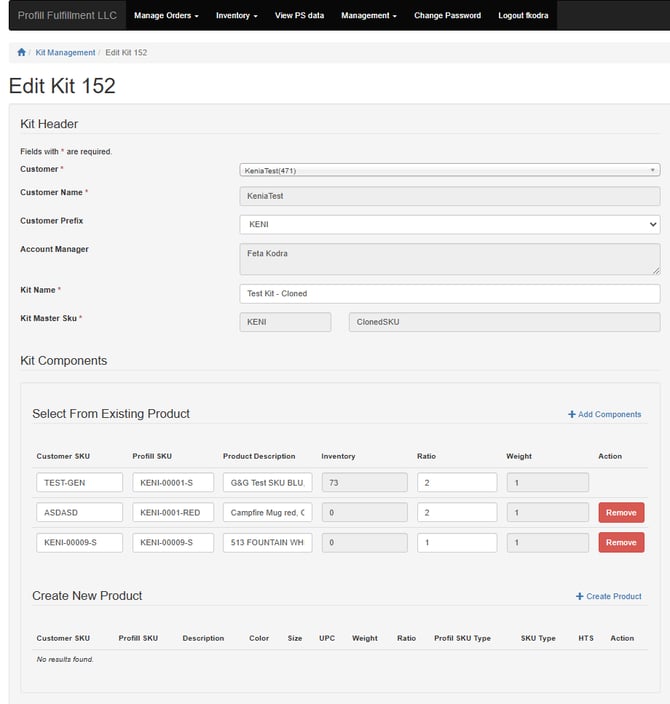
Please note: If there are any Kit Assembly Requests associated with the kit, editing will not be possible. In such cases, it is advisable to clone the kit and implement the necessary changes within the newly created (cloned) kit form.
User Steps:
- Log into the Profill Portal
- Upon log-in, navigate to Manage Orders from menu
- From the drop-down menu on Manage Orders, select Kit Management
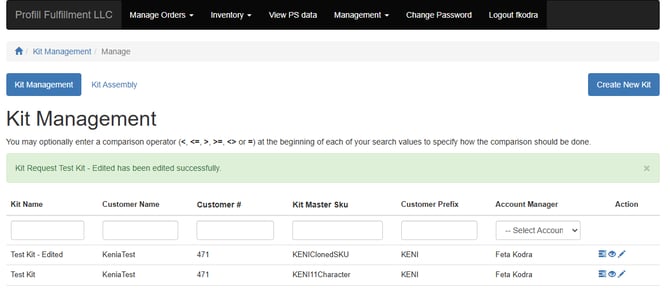
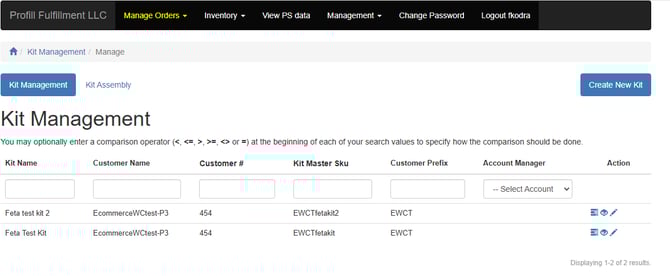
- Review the list of kits; this depends on your user access.
- Click the ‘Pencil’ icon under the Action column to Edit the Kit
- Use the back arrow to return to Kit Management.
- Select your customer
- Select the Prefix you want this Kit Master SKU to be associated with
- Provide a Kit Name
- Provide a Kit Master SKU
- Kit Master SKU starts with the prefix selected above
- You have an additional 11 characters to create the SKU; a total of 15 characters
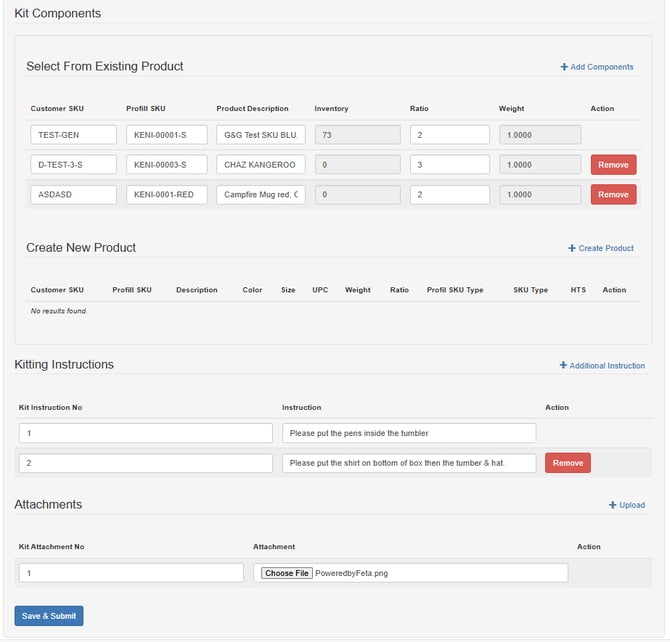
- Select the Add Components you want to make up the Kit
- Search for the component by either Customer SKU, Profill SKU, or Description of the component.
- Provide the Ratio per component that makes 1 Kit
- You may add or remove components
- Provide kitting Instructions for our Kitting Department for your kit
- You can add multiple instructions by clicking "Additional Instructions"
- Need at least one instruction per kit
- Provide attachments that may help with the kitting instructions.
- You can add multiple instructions by clicking "Upload"
- Need at least one attachment per kit
- Click Save & Submit to save your kit or any changes
- You will be redirected to the Kit Management page with a success message on your edited kit