User Steps:
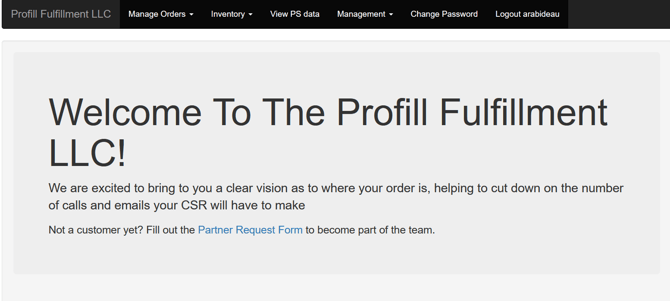
- Log into the Profill Portal
- Upon log-in, navigate to Manage Orders from menu
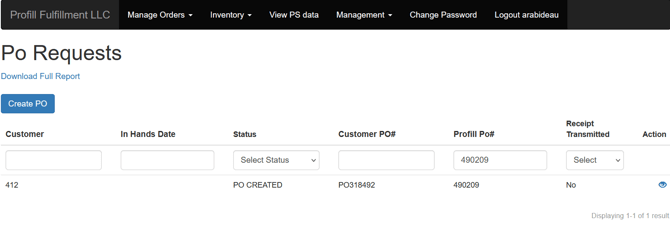
- From drop-down menu on Manage Orders, select Purchase Order Requests
- Review list of purchase orders associated with user log-in
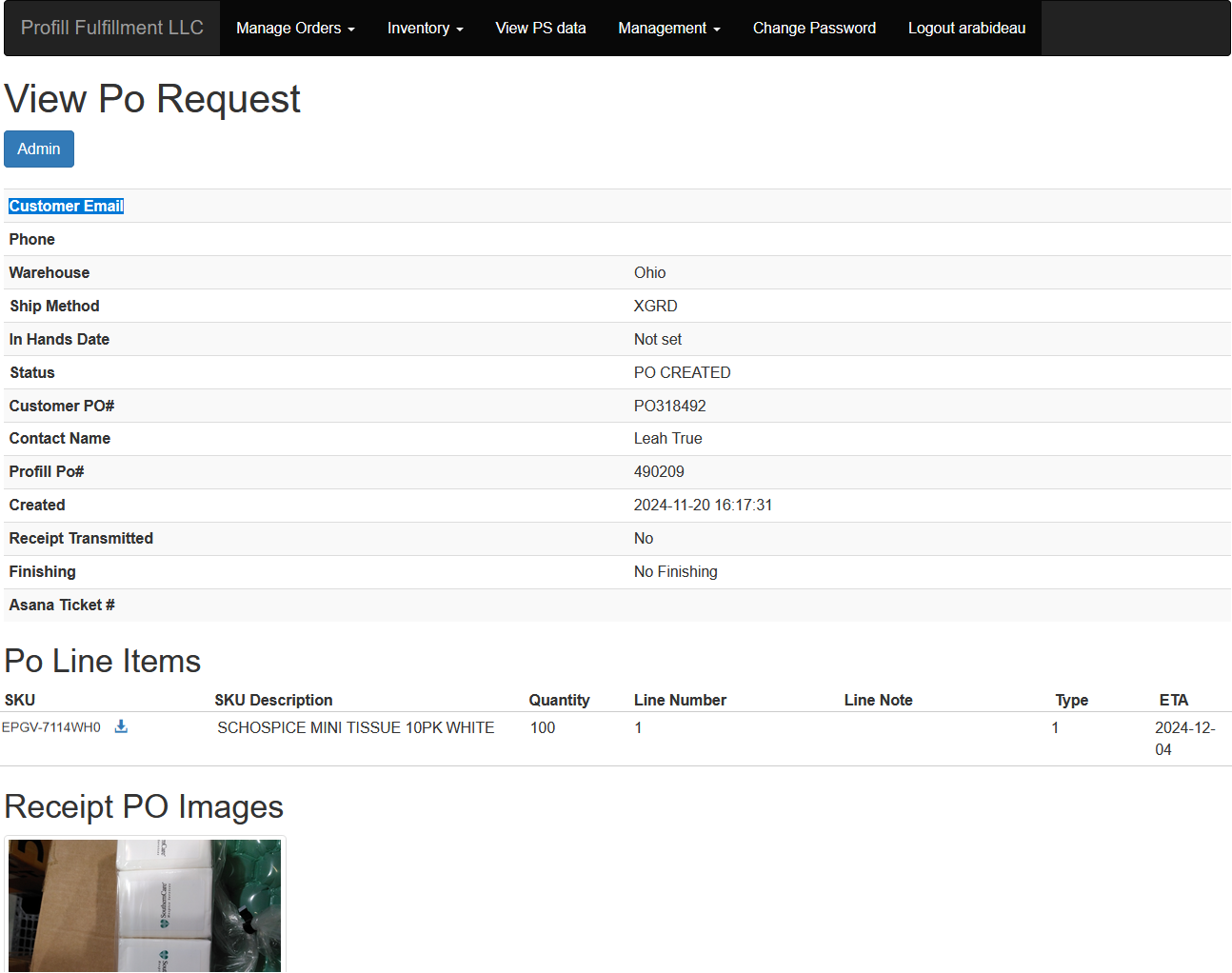
- Click ‘Eye’ icon under the Action column to view purchase order details
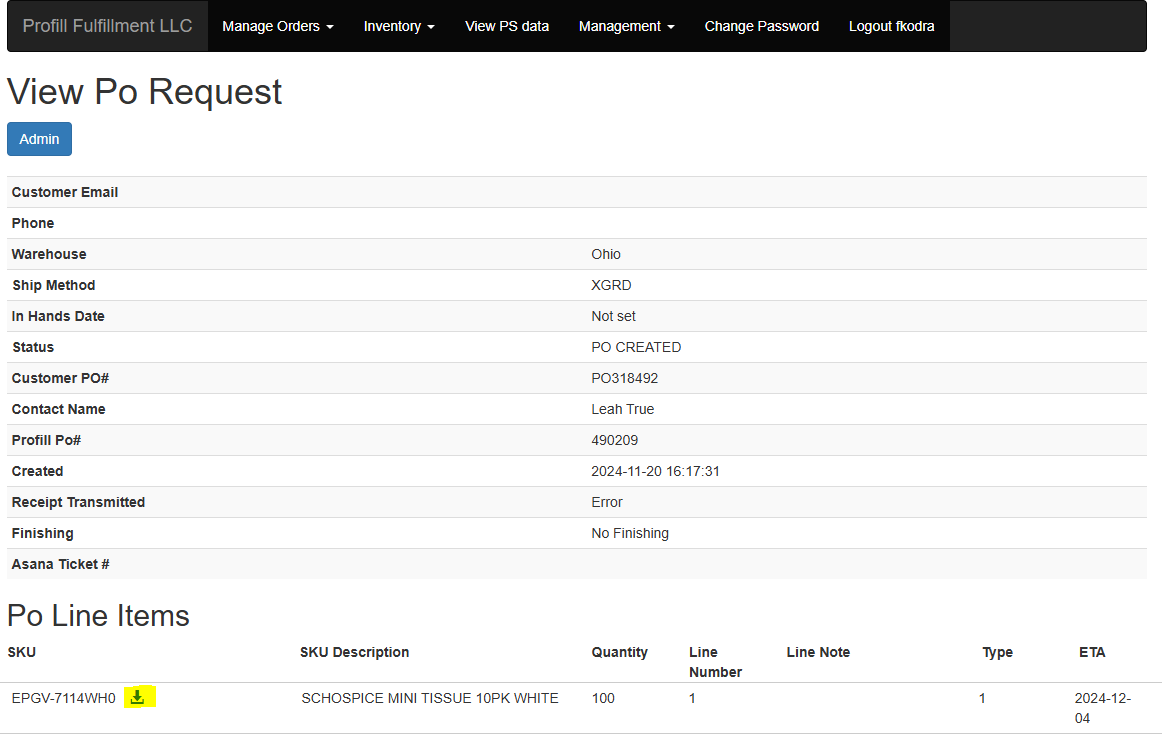
- Scroll down to PO Line Items and notice the download icon by the SKU(s)
- Click download icon by the SKU to initiate download process.
- Downloaded file will be available for viewing in your device.
- Use back arrow to return to Purchase Order Requests