You can check if a product is in stock or not with a few clicks in Profill portal -
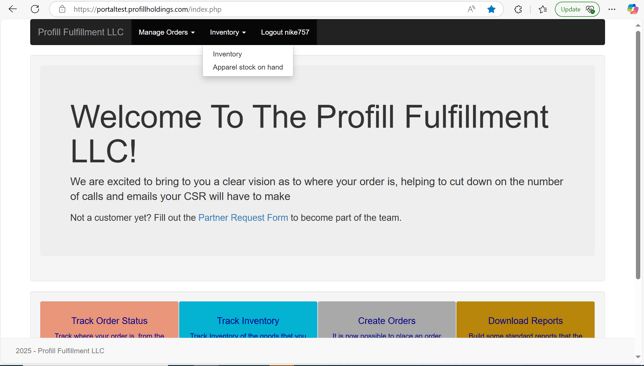
- From the navigation bar go to the inventory drop down and click on 'Inventory'
- You'd be able to view the complete list of available items in the inventory. It will have the following details -
- Product Number - This is the identifier for a product at Profill
- Part description - A brief description about the Product and its specifications.
- Total on-hand - This number shows the quantity of the product which is physically present with Profill. This means that this product can be used for decoration. This count can be used for POD orders
- Qty on open order - This signifies the number of orders the product has been mentioned in. In other words, the quantity of the product required to fulfill orders.
- Qty available for fulfillment - This means the product available on shelf which is ready for fulfillment. This is the finished product after decoration and in most cases is relevant for PPS (pick, pack and ship) orders.
- On Po - This shows the quantity of a product (which was out of stock) which has been ordered internally
- Cross Reference - Cross reference column has the SKU number which might be used internally at your end. If it's difficult for you to find the product using Product number (Profill SKU), you can use your internal SKU to find it.
-
- Apart from these you can filter the inventory list based on decorated and blank products
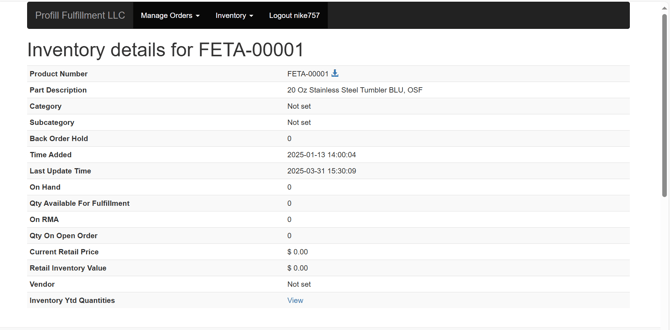
- You can use the view icon ('eye') to go through further details of the product
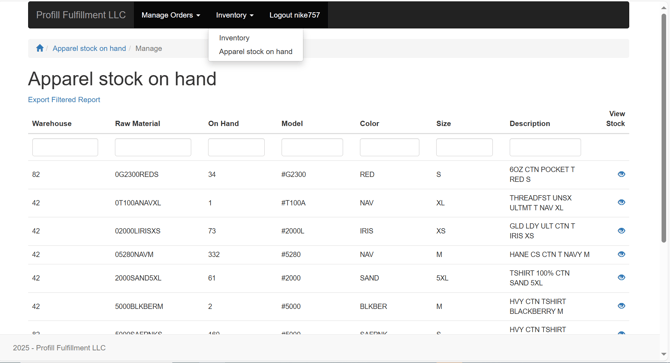
- You can also search about the apparel stock with Profill. There's a separate option for that