Creating a purchase order (PO) in Profill portal is really simple and can be done in two ways -
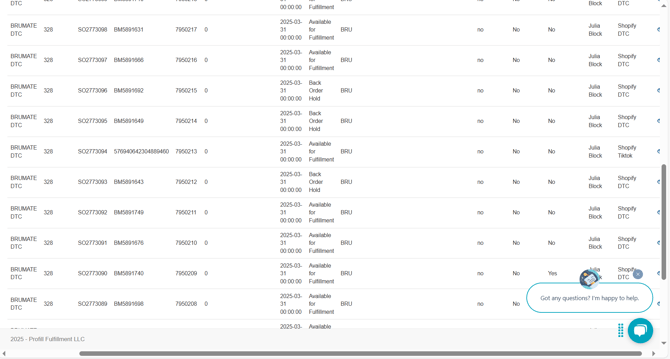
- If your website has a Profill integration, the orders will get logged in Profill portal with all the necessary details. For instance, in the below image, you can see orders made from Shopify, DTC and TikTok.
- You can reach out to your account manager after filling out the Configuration list. It has the following fields -
- Description (max 30 characters)
- HGCG or APCG (Hard goods or Apparels)
- Color/Size (Type out as Color, Size (ex NAV, S))
- Mapping (enter your SKU here)
- Weight (Enter the product weight)
- Product Line (Not needed in case of print on demand orders)
- WH (PB, P3 or P7)
You can go to the Profill portal and place an order by following these steps
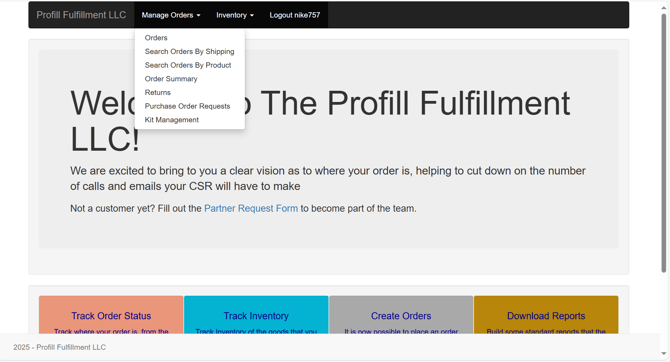
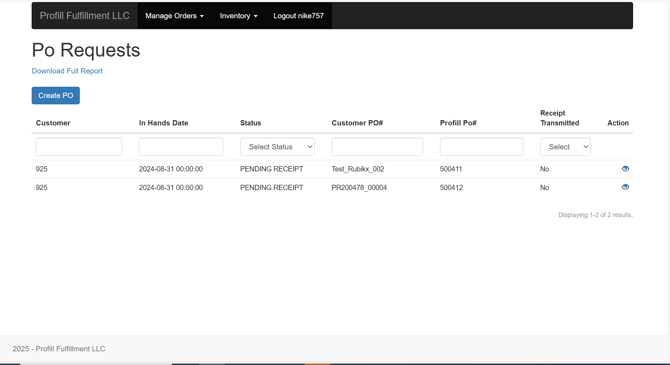
- Go to 'purchase order requests' under manage orders
- Click on 'Create Order' button on the PO request page
- Enter the required details in the form. You will need to locate
the Customer Program Name or Customer Program # and generate a PO Number#, the enter the Customer Name and Email. If the product needs to have the finishing done on the piece, you can choose the option's needed!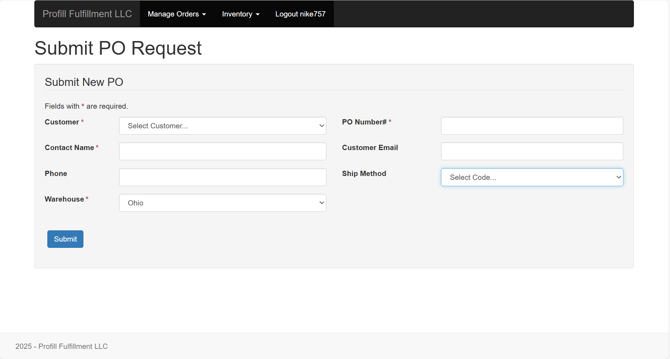
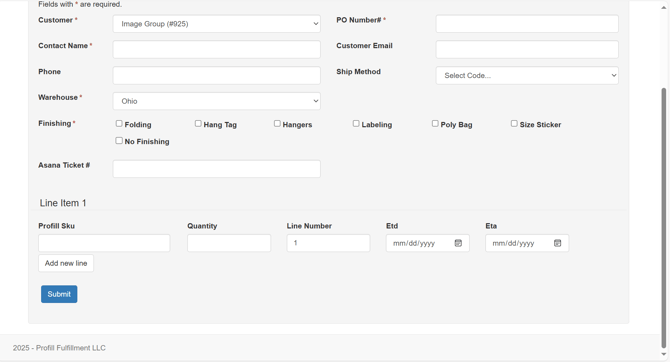
- Profill SKU is the stock keeping unit number in profill which is used to keep track of the inventory. Use the SKUs sent by your AM.
- For all active Profill SKUs, they will automatically generate when typed in. Once an item is located, just add the quantity to be received and enter the Estimated Delivery Date and Estimate Arrival Date
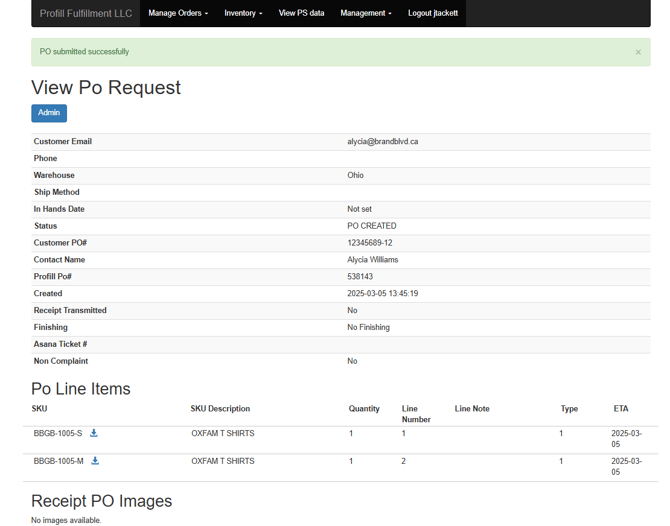
- Once you have entered the SKUs and other details, you can click the submit button at the bottom of the screen. Once processed, the page will update and provide you with the Profill PO# that can be provided to Receiving for items to be released. For Receiving Purposes, it is best to have the PO# generated prior to the product shipping to Profill so that the PO# can be referenced in the shipping information.