
Task cues can help in organizing tasks into groups, acting as labels for filtering, grouping, and sharing tasks.
User steps
- In your HubSpot account, navigate to CRM > Tasks.
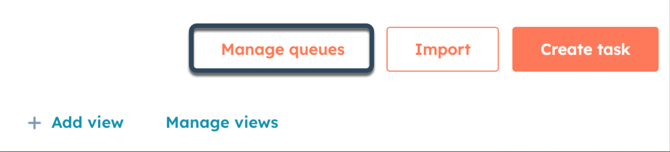
- In the top right, click the Manage queues.
- To create a queue, click Create task queue in the right panel
- Enter a name for the queue.
- Once you're done, click Save.
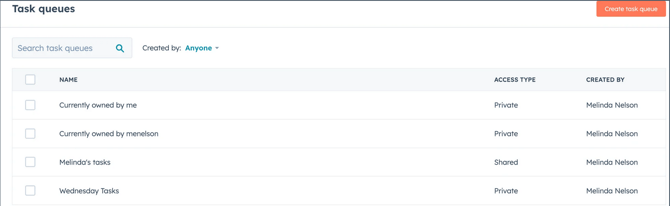
- To edit, delete, or create a view for an existing queue, hover over the queue, then select an option:
- Edit: select to edit the queue's name and the users that have access to the queue. To remove an invited user, click X next to their names in the dropdown menu. Click Save to confirm your changes.
- Delete: select to delete the queue. In the dialog box, click Delete to confirm. The tasks in the queue will not be deleted.
- Create view: select to create a saved view that includes the tasks from the queue. In the dialog box, enter a name for the view, then click Save. You'll be brought to the view's tab.
- To add tasks to queues
- Navigate to CRM > Tasks.
- click create task in the top right. Enter the details of your task and select a queue from the Queue dropdown menu.
- To add existing tasks to a queue, select the checkboxes next to tasks you want to include in your queue, then click Change queue at the top of the table.

- In the dialog box, select the queue in the dropdown menu.
- Click Save.
Note: Please note, shared task queues can be edited or deleted only by the user that created the queue, or by super admins added to the queue. Editing actions include changing the queue's name and/or visibility settings.