
You can create tasks in HubSpot from multiple tools, including the tasks index page, an object index page, or on an individual record.
Details required to create a task
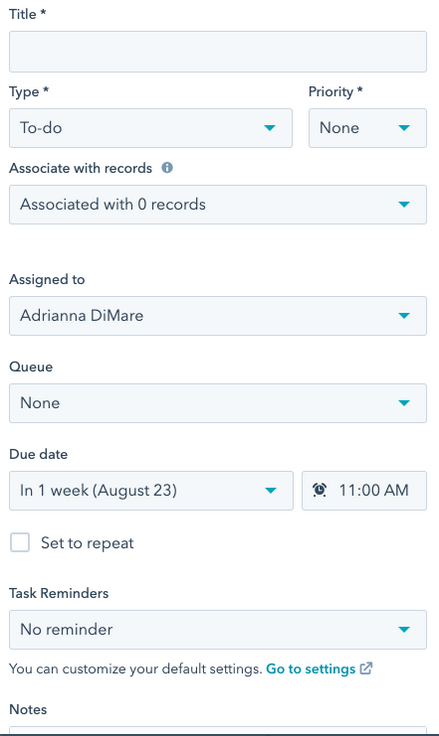
- Title: enter a task name in the Title field. Include the text call or email in the title of your task to automatically set the corresponding task type.
- Type: select Call, Email, or To-do.
- Priority: select if the task is low, medium, or high priority.
- Associate with records or [x] associations: search and select records to associate with the task.
- Assigned to select the user who the task is assigned to.
- Queue: add the task to an existing task queue or create a new task queue.
- Due date: select the date and time the task is due. The time format (e.g., 12 hours vs. 24-hour format) is determined based on your
- Set to repeat: select the checkbox, then enter a number and select an interval of time for your task to repeat. The Set to repeat option will appear when creating tasks from the tasks index page or within an individual record, but the option will not appear if you're creating tasks from an object index page.
- Task reminders or Send reminder: click the dropdown menu to select when an email reminder should be sent to the task owner.
- Notes: enter details about your task.
Create tasks from task index page
User steps:
- In your HubSpot account, navigate to CRM > Tasks.

-
In the upper right, click Create task.
- In the right panel, enter the details of your tasks
- Click Create. To create the current task and start creating another task, click Create and add another.
Create tasks for specific records or objects
User steps:
- Navigate to your records:
- Contacts: In your HubSpot account, navigate to CRM > Contacts.
- Companies: In your HubSpot account, navigate to CRM > Companies.
- Deals: In your HubSpot account, navigate to CRM > Deals.
- Tickets: In your HubSpot account, navigate to CRM > Tickets.
- Custom objects: In your HubSpot account, navigate to Contacts > [Custom object]. If your account has more than one custom object, hover over Custom Objects, then select the custom object you want to view.
- Creating tasks for multiple records in bulk:
- Select the checkboxes next to the records you want to create tasks for.
- Click + Create tasks at the top of the table.
- In the right panel, enter the details of the tasks, then click create

- Creating tasks for an individual record:
- Click the name of the record.
- In the left panel, click tasks Task.
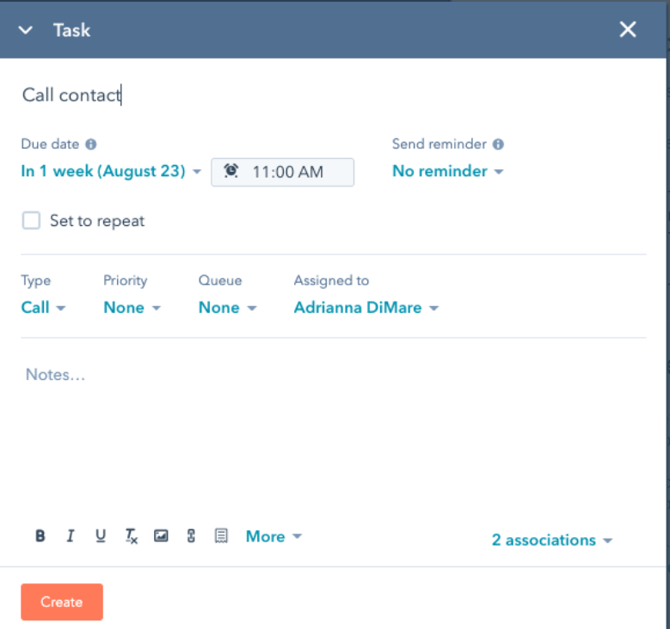
- In the task editor, enter the details of your task
- Click Create